


Dual Boot or Virtual Machine – Full Beginner-Friendly Guide
Dual Boot Guide 2025: Ever wanted to enjoy the best of both worlds—macOS for creativity and Windows 10 for gaming or productivity—on the same computer? You are not alone.
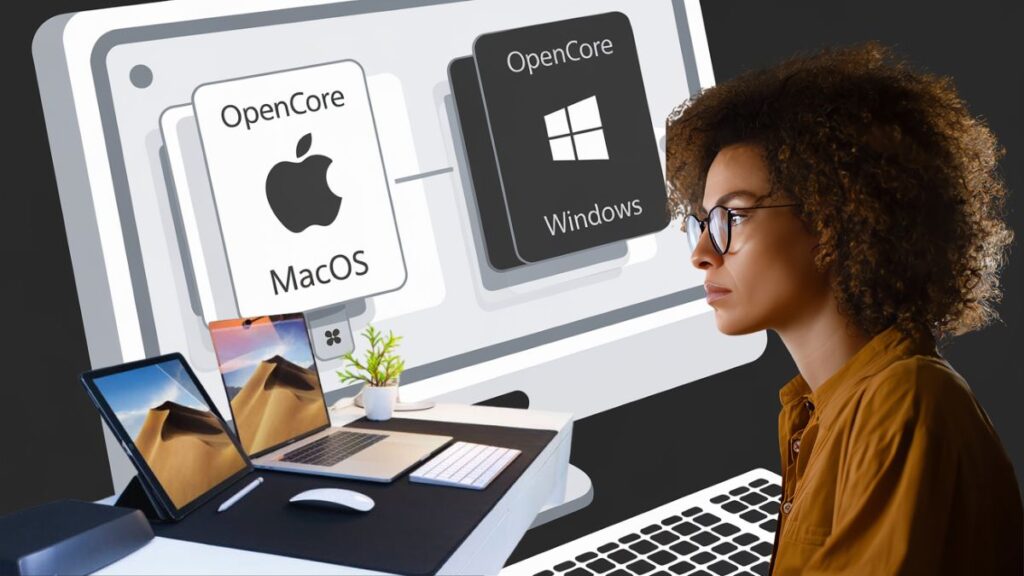
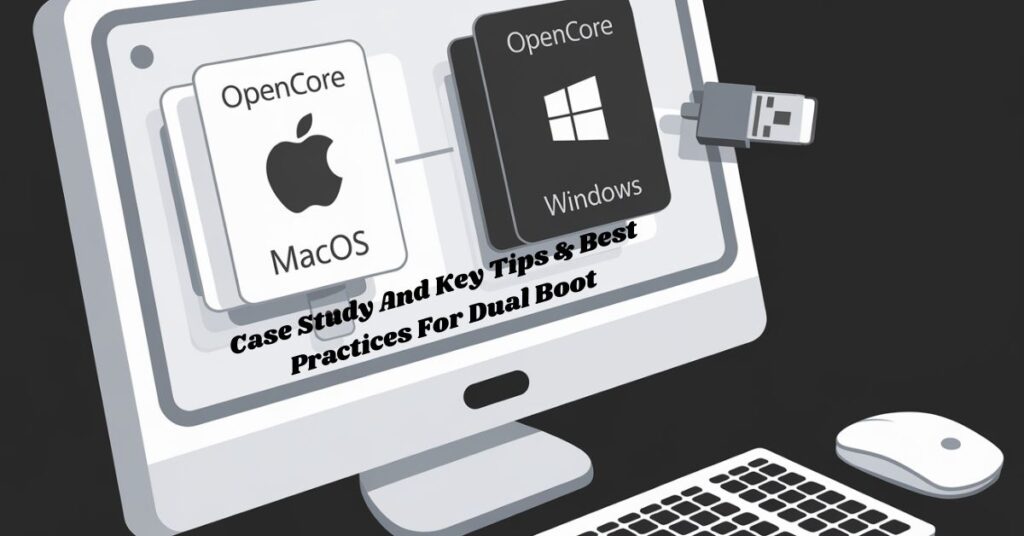
This detailed yet simple guide walks you through how I successfully ran both macOS and Windows 10 on a custom-built PC using OpenCore and rEFInd. Whether you want maximum speed with dual-boot or prefer convenience with virtual machines (VMs), I will break it down step by step.
Two Ways to Run macOS and Windows on One PC
Option 1: Dual Boot Setup (Native)
- Each OS is installed on its own drive or partition.
- You choose which one to boot at startup.
- It’s best for performance, but switching requires a reboot.
Option 2: Virtual Machine (VM) Setup
- Run Windows inside macOS or vice versa using apps like Parallels.
- It is more convenient, but performance may be slower.
Which one to pick? Keep reading—I will help you choose.
My Dual Boot Method (2025 Build Example)
Here is how I set up a dual-boot system using two SSDs and OpenCore:


Dual Boot Step-by-Step Guide:
- Install Windows 10 First
- Use GPT partition style (not MBR).
- Avoid touching the EFI system partition.
- Shrink the Windows Partition
- In Disk Management, leave at least 50–100 GB free for macOS.
- Create macOS USB Installer
- Use tools like UniBeast, balenaEtcher, or GibMacOS.
- Format the macOS destination drive as APFS.
- Install macOS
- Choose the second SSD or the free space you created.
- Complete the installation process.
- Set Up OpenCore or Clover
- I used OpenCore 0.9.1 with rEFInd as a visual boot menu.
- Configure the EFI Partition
- Ensure that both Windows and macOS boot files are present in the EFI folder.
- Back up this partition to a USB drive—this is very useful if updates cause boot issues.
- Test the Boot Menu
- Restart and check if you can switch between macOS and Windows without any problems.
Read this very powerful Article: Dual-boot with Windows
Why Should You Install Windows First?
Windows tends to overwrite the EFI bootloader without warning. Installing it first avoids problems. If you install macOS first, Windows might break your boot setup and make macOS unbootable.
Virtual Machines: The Easier (but Slower) Option
Do you not want to reboot every time you switch OSes? Virtual machines let you run macOS and Windows side by side.
Popular VM Tools:
- Parallels Desktop: Great for macOS hosts. Smooth drag-and-drop support. Best choice for M1/M2 Macs.
- VMware Fusion: Reliable, good performance. It works well with Intel Macs.
- VirtualBox: Free but limited GPU acceleration and performance.
I use Parallels on my Intel Mac for testing apps across platforms. It is smooth enough for daily use—just not ideal for games or heavy tasks.
Dual Boot: Risks & Things to Know
Legal Warning:
- Installing macOS on non-Apple hardware (Hackintosh) violates Apple’s license agreement.
- You do this at your own risk—Apple would not provide support.
Technical Considerations:
- Hardware Compatibility: macOS requires special drivers (called “kexts”). Always check with the latest OpenCore guide to see if your motherboard, GPU, and Wi-Fi are supported.
- Windows Updates: Occasionally, updates will reset your bootloader. It is annoying but fixable—restore from your EFI backup or adjust the BIOS boot order.
Case Study: My 2025 Dual Boot Build
Component Specification
CPU Intel Core i7-12700K
Storage 2× 1TB NVMe SSDs (one for each OS)
Bootloader OpenCore 0.9.1 + rEFInd
Result: Fast boots, clean switching. One Windows update broke the boot menu; it was fixed through the BIOS, and OpenCore was reselected.
Key Tips & Best Practices For Dual Boot
- Install Windows first to avoid EFI conflicts.
- Use two separate drives—one for macOS and one for Windows.
- Use OpenCore and rEFInd for flexible and stable boot management.
- Always back up your EFI partition to a USB stick.
- Use a VM (Parallels/VMware) if you want fast switching with lower performance needs.
5 Most Asked Questions (FAQ) on Dual Boot Build
1. Can I install both OSes on one drive?
Yes, but it is more complicated. Using two SSDs is more stable and reduces risk.
2. Why install Windows first?
Windows is aggressive with bootloaders. Installing it first helps avoid overwriting macOS boot entries.
3. How much space should I set aside for each OS?
Minimum: 50–64 GB each. Recommended: 250–500 GB, especially if you plan to install games or creative software.
4. Will Windows updates break the setup?
They can—preeminent ones. Always keep an EFI backup to recover quickly.
5. Should I go with a dual-boot system or a virtual machine?
- Dual-booting = better performance, ideal for gaming and video editing.
- VM = convenience, quick switching, great for testing or office work.
Final Thoughts – Which One Should You Choose?
Choose Dual-Boot if:
- You want full performance.
- You’re comfortable troubleshooting EFI and BIOS settings.
- You use macOS apps and also want Windows for games or work.
Choose Virtual Machines if:
- You want to switch OSes quickly.
- You prefer convenience over speed.
- You mostly do light tasks, like office work or browsing.
Go Ahead and Build Your Hybrid System
With the proper setup, you can enjoy macOS and Windows 10 on the same machine—without buying two computers. Just be sure to:
- Follow the steps carefully.
- Understand the legal implications.
- Keep backups of your EFI and boot configs.
Need help with your build? Drop your specs or questions—I’m here to help.